
Creating accessible digital content isn’t just a legal requirement — it’s an essential part of inclusive teaching and learning. This page brings together curated tools, training, and documentation to help you design, evaluate, and maintain content that meets the Web Content Accessibility Guidelines (WCAG) 2.1 Level AA standard.
Learn the Essentials
Accessibility Toolkit (Instructure)
Whether you’re just getting started or refining your practice, this Accessibility Toolkit brings together trusted resources, Instructure-specific tools, and community-shared insights to help you design with empathy and clarity. Accessibility isn’t a checkbox—it’s a mindset. And every thoughtful decision you make helps remove barriers and open doors for learners of all abilities. Let’s keep learning, sharing, and building a more inclusive experience for everyone.
Canvas Training Course
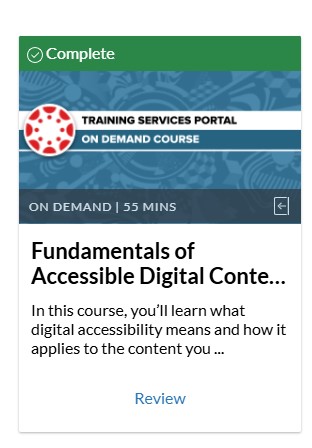
“Fundamentals of Accessible Digital Content in Canvas” is an on-demand self-paced training course freely available to Siena Community. “In this course, you’ll learn what digital accessibility means and how it applies to the content you create. You’ll explore the key principles that form the foundation of accessible design, understand how to check for accessibility issues in Canvas, and apply best practices for images, files, and course materials.”
To access the course, select the “Help” from the green global navigation menu, and then select the “Training Services Portal” from the slideout menu. You will be prompted to authorize your access to an external portal. Then you can see the course. You can also access the course directly: Fundamentals of Accessible Digital Content in Canvas.
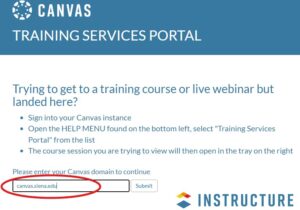
Step 1: Visit Fundamentals of Accessible Digital Content. Enter Siena’s domain: canvas.siena.edu
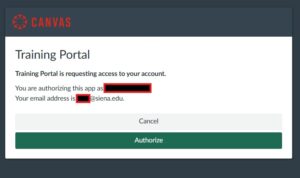
Step 2: Authorize your access to the Training Portal.
Step 3: Find the training module and get started.
Cornerstone
Siena’s Cornerstone has several self-paced courses available to all Siena employees (Faculty, Administratives, and Staff). Follow the curated Cornerstone Playlist “Web Accessibility” for a detailed list of related training courses.

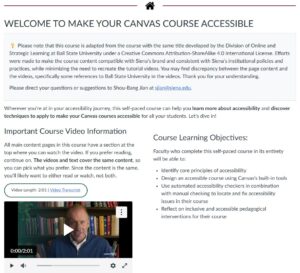
“Make Your Canvas Course Accessible” – A self-paced course
Make Your Canvas Course Accessible is a self-paced course in Canvas to guide you through the fundamentals of Web Accessibility standards and best practices. It is designed to be both a learning resource and a reference guide. We hope that you work through the modules to learn more about accessibility. We also hope that you bookmark this course and use it as a reference whenever you’re developing your courses in Canvas. The Checklist (PDF) is a great companion to this course.
Microsoft Accessibility Checker
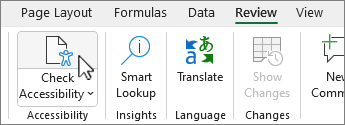
If you use Microsoft Office to author documents, you now have improved accessibility checker ribbon to help you inspect and remediate issues. Microsoft’s tool typically flags issues categorized into Errors, Warnings, Tips. For a comprehensive list, check out the Microsoft’s Rules for the Accessibility Checker.

Automated Testing Tools
- Canvas Course Accessibility Checker
- Canvas’ new Course Accessibility Checker integrated directly into your courses. It is designed to help you identify and address accessibility issues with minimal effort and no additional cost. (Read More) Academic Technology has enabled the feature and it is now globally available to all Siena courses in Canvas. You can find it in the course navigation menu.
- Accessibility checker in Canvas Rich Content Editor (RCE)
- The Rich Content Editor includes an accessibility tool that detects common accessibility errors within the editor. You can use the Accessibility Checker to design course content while considering accessibility attributes. This tool only verifies content created within the Rich Content Editor. You may use other accessibility tools to verify additional content in Canvas. (https://community.canvaslms.com/t5/Canvas-Basics-Guide/How-do-I-use-the-Accessibility-Checker-in-the-Rich-Content/ta-p/618238) (embedded video)
- WebAIM’s color contrast checker: a free tool to verify the color contrast. Color pickers are built in.
- PAC for PDFs: a very technical checker (e.g. Do you know what a bounding box is? I didn’t before this checker.). It also checks for PDF/UA compliance. Would not recommend it for those who are not working with PDFs on a near daily basis.
- WAVE: Web Accessibility Evaluation Tool.
- Google Lighthouse. Lighthouse is an open-source, automated tool to help you improve the quality of web pages. You can run it on any web page, public or requiring authentication.
- Image Accessibility Creator (ASUEduPlus): generate alt-text and long descriptions for you by uploading an image. (Free to use)
- MathPix Snip: convert handwritten equations/formulas/PDFs to more accessible formats, including Word and HTML. (Free for limited use; subscription starts at $4.99 per month.)
Guides and Checklists
- Understanding the Web Content Accessibility Guidelines (WCAG)
- Create and verify PDF accessibility (Adobe)
- Create accessible Office documents (Microsoft)
- Make your document, presentation, sheets & videos more accessible (Google)
- Making Accessible Documents, a Quick Checklist (WCET)
- Canvas Course Accessibility Checklist (Instructure)
- Make Your Canvas Course Accessible Checklist (Siena)
- Effective Practices for Description of Science Content – Guidelines for Describing STEM Images (GBH)