
Turnitin is known for the plagiarism-checking technology, built upon a large database of student works over the years. Their Originality/Similarity report is arguably the gold standard for plagiarism detection and improving the quality of academic writing, and is widely adopted in Higher Education.
Turnitin in Canvas
Turnitin is integrated with Siena’s Canvas LMS. Faculty can enable Turnitin in the Assignment either as an External Tool, or Plagiarism Framework (see below for details). Students can submit their work to a Turnitin-enable assignment in Canvas. There is no need for students to go to Turnitin.com directly.
Select the tools below to learn more:
The Turnitin External Tool is available in Siena’s Canvas (LTI 1.1 is currently used). This tool allows you access to Turnitin’s full suite of evaluation tools, including Turnitin’s online grading tools (Feedback Studio) and peer review system (PeerMark). When using the External Tool, you create the assignment and your students submit to the assignment from within Canvas. You can also use Canvas SpeedGrader and Rubric for grading.
Setting up an assignment using the External Tool
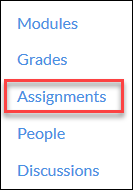
In Course Navigation, click the Assignments link.
To add a new assignment, click the +Assignment button.
Enter the assignment’s name, details, total points possible, and choose your preferred display of grades. These steps are unchanged from creating a normal Canvas assignment.
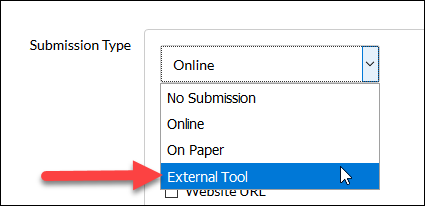
Use the Submission Type dropdown to select External Tool.
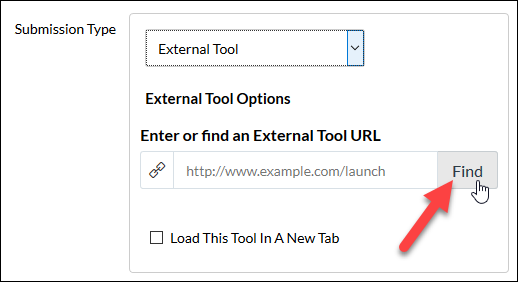
Once External Tool is selected, you will be prompted to Enter or find an External Tool URL. Use the Find button to pop open a menu.
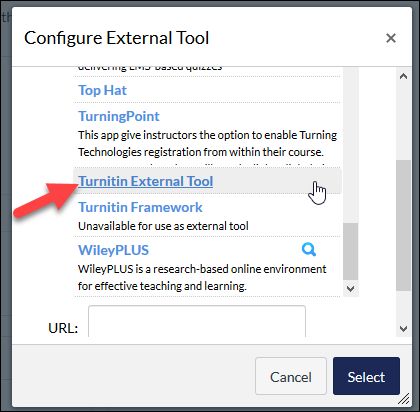
From this menu, select Turnitin External Tool. Note that the Turnitin Plagiarism Framework is not enabled in this way. If you wish to use the Plagiarism Framework, please see these instructions for its use.
Now you may complete the rest of the Canvas assignment set-up as per normal.
Once the set-up is complete click Save. (We recommend that you not Save & Publish because there are still a couple of extra steps before this assignment is ready for student submissions.)
Completing assignment setup with the Turnitin External Tool settings
Once the assignment is saved, the Turnitin External Tool Settings dashboard will load. This is where you will deal with the settings that are specific to Turnitin assignments, and it is very important that you review these settings prior to publishing the assignment.
Start, Due and Feedback Release Dates
These dates are independent of the any due or availability dates that you may have set up on the Canvas side of this assignment. Students will not be able to submit prior to the start date you set here, and they will not be able to see any feedback you have left on their work until after the feedback release date.
Optional Settings
The settings in this area determine the nature of the similarity report generated by Turnitin and it is important that you click on Optional Settings to review these. Once you have done so, click Submit.
Turnitin Plagiarism Framework is suited for instructors who would like to receive a Turnitin similarity report on their student submissions while continuing to use Canvas’s built-in tools for rubrics, feedback, peer review and scoring. Incorporating the Plagiarism Framework into a Canvas assignment is quick and easy, and you do not need to learn a whole new suite of tools in order to do your grading.
Setting up an assignment using the Plagiarism Framework
In Course Navigation, click the Assignments link.
To add a new assignment, click the +Assignment button.
Enter the assignment’s name, details, total points possible, and choose your preferred display of grades.
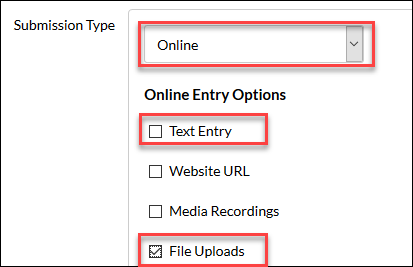
Use the Submission Type dropdown to select Online. Select Text Entry and/or File Uploads as Online Entry Options.
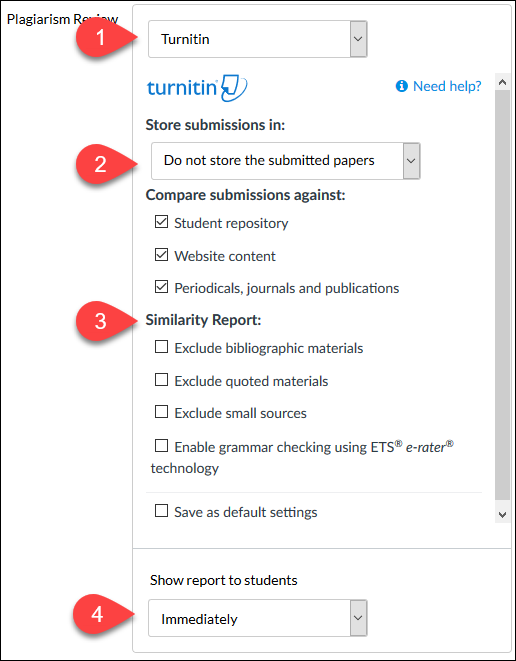
A Plagiarism Review box will appear once you have selected an Online submission type with text entry of file upload options. In the Plagiarism Review dropdown, select Turnitin (1).
Once you have selected Turnitin, the box will expand with a few more settings. Please review these carefully, as they pertain to whether or not submitted papers are included in the Turnitin repository (2), and how the similarity report is prepared (3).
Select your preferred timeline for showing similarity reports to students (4).
Now you may complete the rest of the Canvas assignment set-up as per normal.
Once the set-up is complete click Save or Save & Publish.
Still not sure which one to use, check the comparison chart between Plagiarism Framework and LTI Integration for more information. (Note that Siena University currently has LTI 1.1 version of the External Tool).
Turnitin and AI Detection Tool
Turnitin introduced their own AI writing detection tool in April 2023 to assist faculty members in tackling the threat of academic integrity from the Generative AI (Gen-AI) tools, such as ChatGPT. Academic Technology made the decision to continue provide the tool to our faculty, despite the concerns such as false positives or biases. Please refer to the Turnitin and AI Detection Tool page for information on setting it up and interpreting the report. You are also encouraged to refer to the Faculty Guide to learn more about the nuance of using it.
Best Practices
License Type and Support
- Academic Technology has a license for Turnitin Originality, which includes services like Feedback Studio, Originality Report, PeerMark, and AI Writing Detection Report.
- Academic Technology support level: High